What is the "Remember this device" feature?
The 2FA process adds an extra step to logging onto your LetkoBrosseau client portal: you need to receive your 2FA code and type it into the client portal. Some find this to be a hassle, even though they understand why 2FA is important for their security.
The "Remember this device" feature allows you to skip the 2FA code verification step when connecting from a specific device. This could be, for example, when logging in from your home computer.
Is it safe?
Perhaps you are wondering if it is safe to use such a feature. After all, it may appear at first glance to circumvent the 2FA process that was meant to protect you.
The short answer: "Remember this device" is safe as long as you can keep your device safe.
This being said, the "Remember this device" feature introduces a risk that shouldn't be ignored. It offers a way in for an attacker that has access to both your password AND your device. The "Remember this device" feature should only be used if you believe your device is secure.
Note: The 2FA code verification will only be skipped on the specific devices where "Remember this device" was enabled.
Note: If your device is vulnerable or shared, do not activate the "Remember this device" feature on that device. For instance, do not activate it if: your device is shared with untrusted persons, you often leave this device unsupervised in public places, you believe the device may be infected with a virus, etc.
How to activate "Remember this device"?
While you are logging onto the client portal, on the page where you enter your 2FA code, you will notice a small checkbox labelled "Remember this device". If you check this box and then successfully log on, your device will be "remembered" starting from this point and you will no longer be prompted to provide a 2FA code when logging on from this device.

How can I "forget" a device?
If you decide to "forget" a device (in other words if you want to disable the "Remember this device" feature), the client portal will once again start prompting you to provide a 2FA code in order to log in from that device.
If you wish to forget one or many devices:
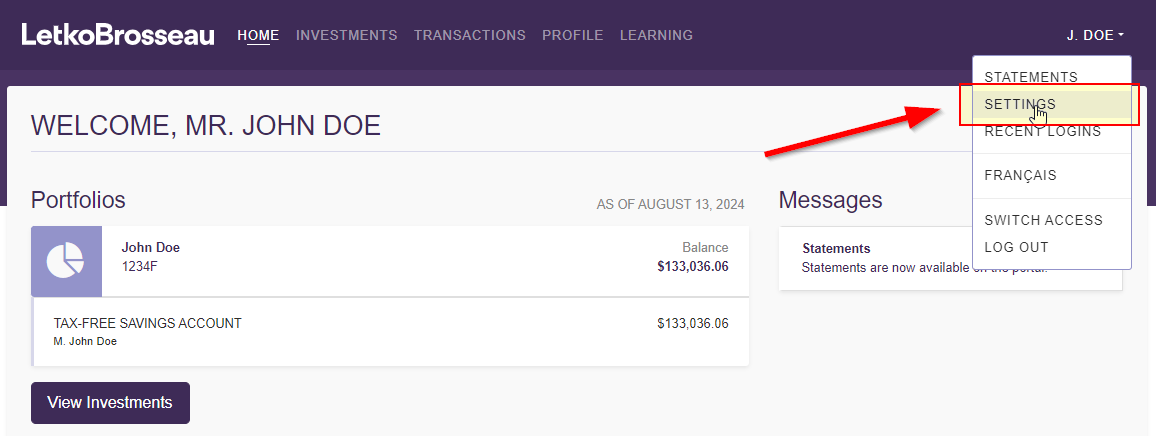
STEP 1: Connect to the client portal and go to your settings
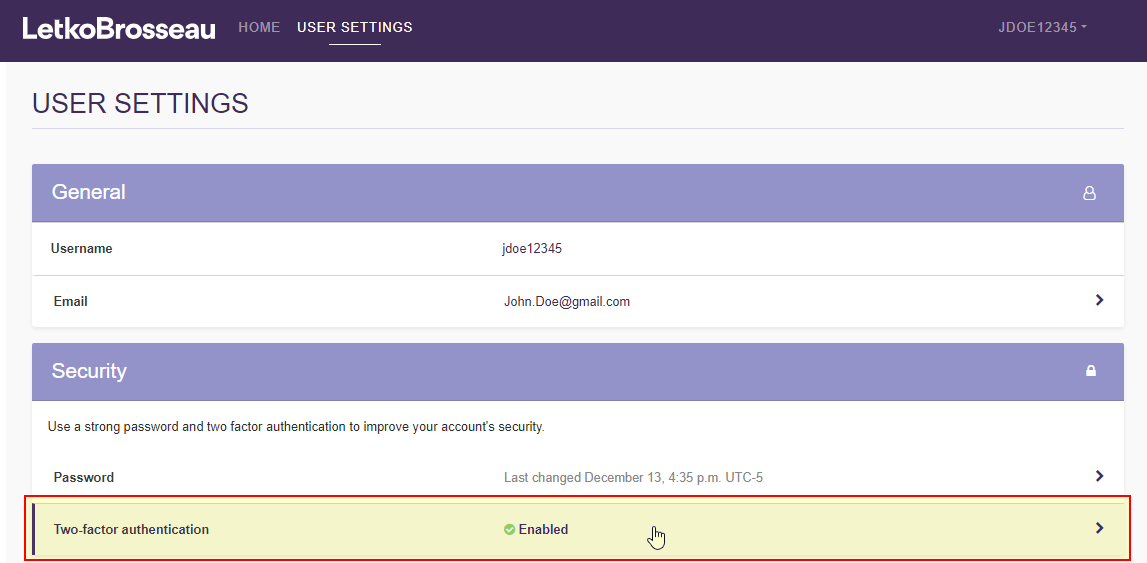
STEP 2: Click the "Two-factor authentication" section
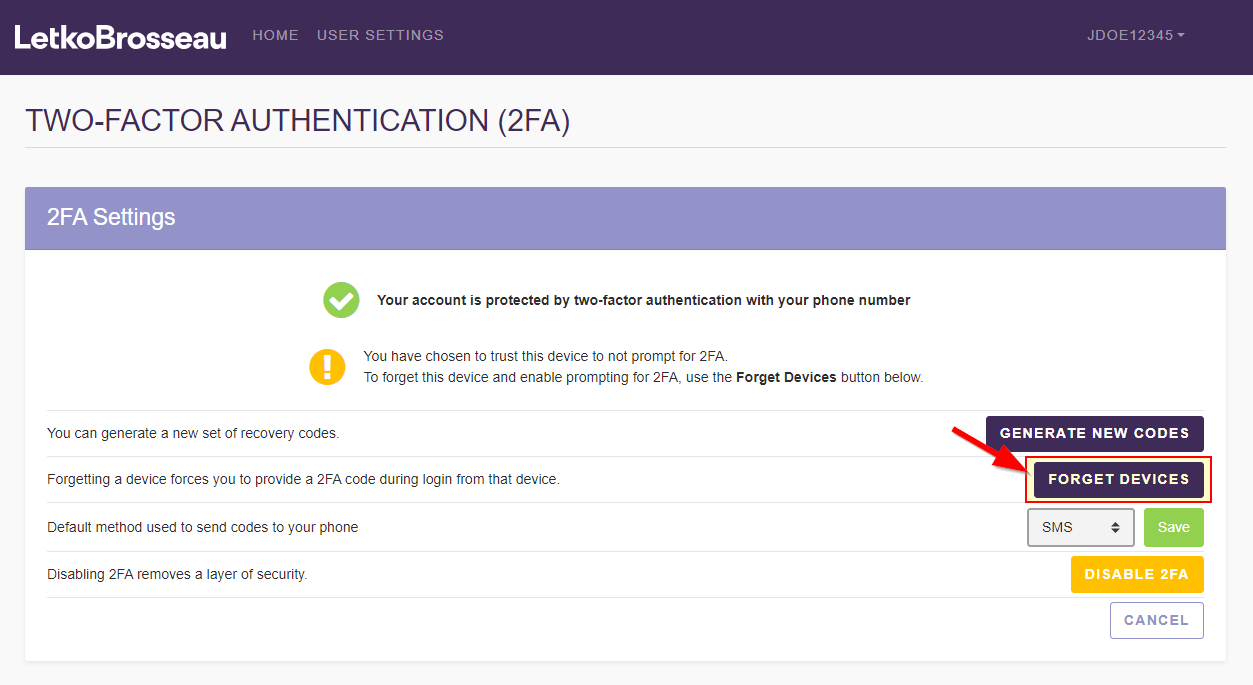
STEP 3: Click on the "Forget devices" button
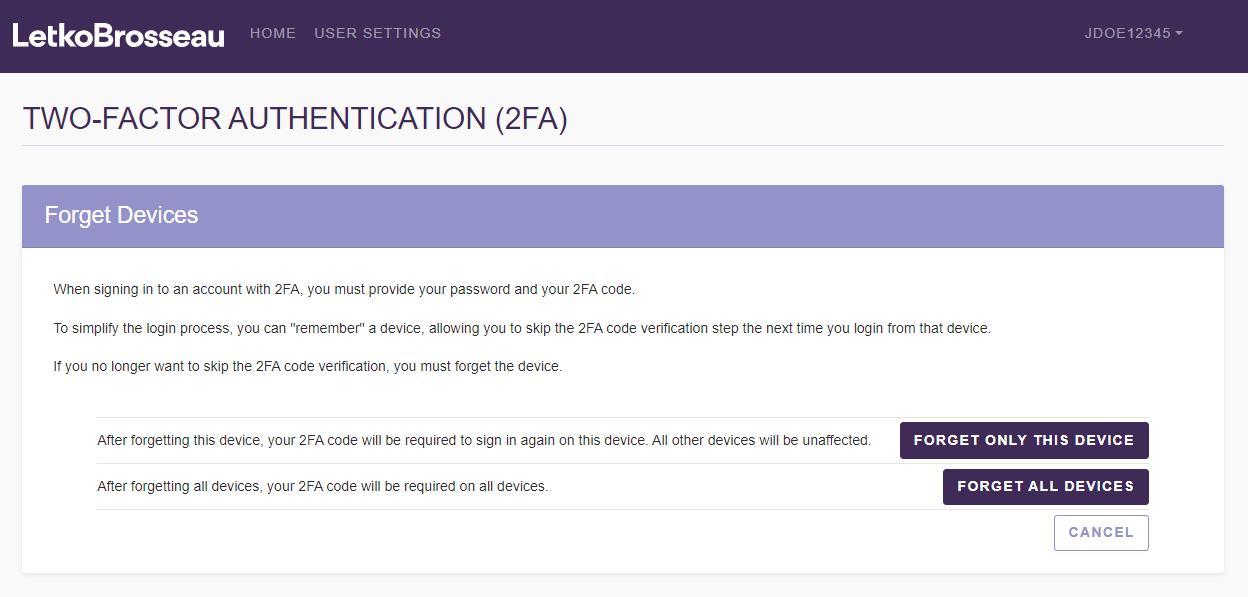
Because it is possible that you "remembered" more than one device, you also have the option of forgetting either just the current device, or all devices. Depending on your choice, click on either "Forget only this device" or on "Forget all devices".