Why choose the phone call method?
Activating 2FA on your account greatly enhances its security, no matter how you retrieve your 2FA codes.
The most secure way to retrieve your security codes is via a dedicated 2FA authenticator application. However, some find it more practical to receive their 2FA code via an automated telephone call.
If 2FA is already activated on your account and you retrieve your codes in an authenticator application, but you would like to receive your codes via an automated telephone call instead, we suggest you read the article How to change my 2FA method?
Start here
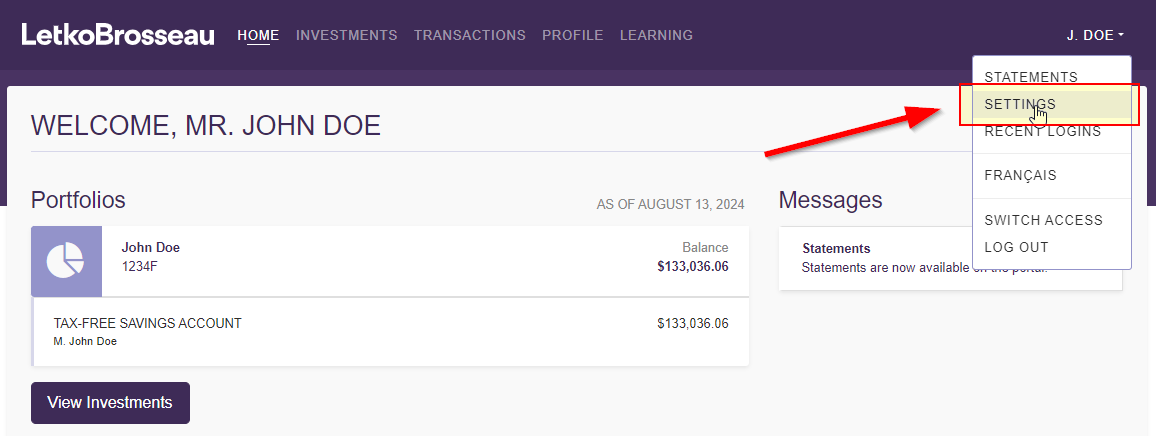
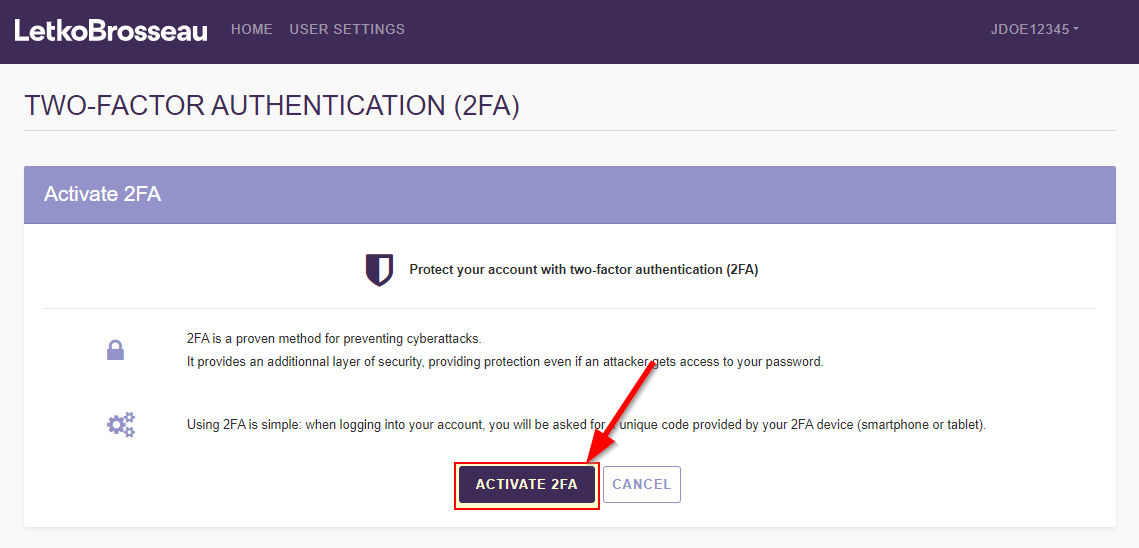
First, connect to the client portal. Once you have logged in, you should see the "Activate 2FA" button. Click on this button.

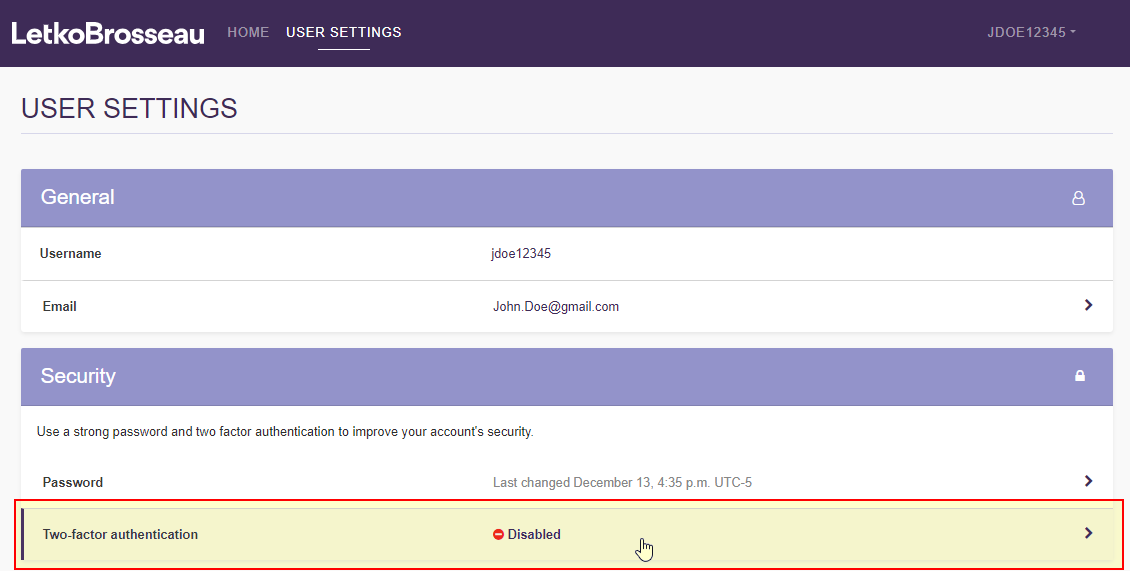
If you do not see the "Activate 2FA" button after logging in, go to your client portal settings. From there, click on the "Two-factor authentication" section and finally, click on "Activate 2FA".
Configure your 2FA with phone call
STEP 1: Specify a phone number
Choose the option "Receive a code by phone call".
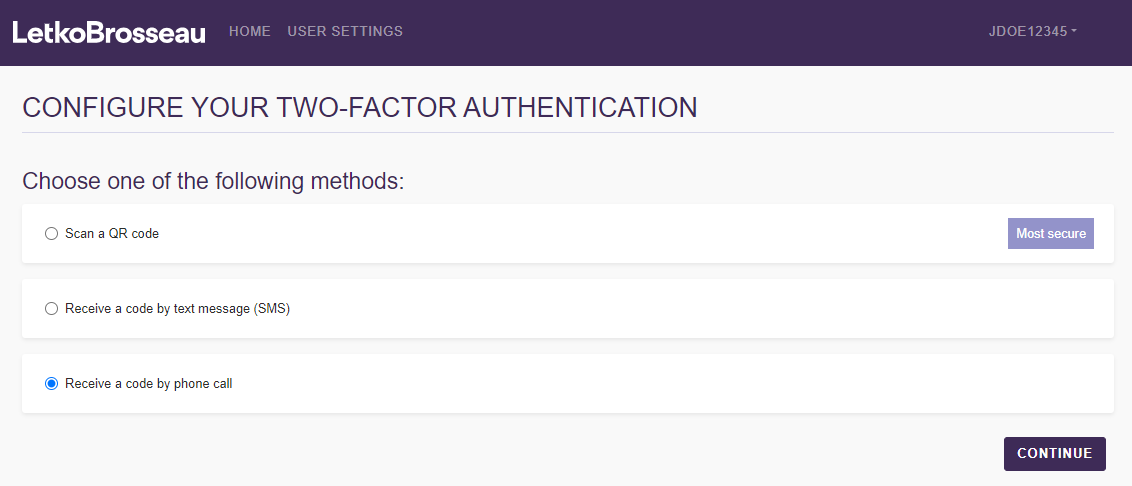
You will see the page below. Enter your phone number and click "Continue".
Note: Phone numbers that include an extension number are not supported.
Note: Most phone number formats are supported (555-555-1234, 5555551234, 555.555.1234, etc.)

STEP 2: Validate your phone number
Enter the 6-digit security code you will have received via the automated phone call in the designated area, and then click "Continue".

What to expect next time you log in
The next time you connect to the client portal, you will log in with your username and password, as usual.
Afterwards, you will receive an automated phone call providing your 6-digit 2FA code, which you will need to enter on the client portal screen to complete your login process.