What if I want to use a different 2FA method?
If 2FA is currently active on your account, but you would like to obtain your 2FA codes in a different way, you are in the right place.
The following sections will explain how to proceed depending on which situation you are in:
- Change from 2FA with text messages (SMS) to the phone call method (or vice-versa): You currently receive your 2FA codes by text message (SMS), but you would prefer to receive them by automated telephone call (or vice-versa).
- Change from 2FA with authenticator application to the text message (SMS) or phone call method: You currently open an authenticator application on your smartphone to find your 2FA codes and you would prefer to receive the 2FA codes by text message (SMS) or phone call.
- Change from 2FA with text message (SMS) or phone call to the authenticator application method: You currently receive your 2FA codes by text message (SMS) or phone call, but you would prefer to retrieve your 2FA codes from an authenticator application (such as "Google Authenticator" or "Microsoft Authenticator").
1. Change from 2FA text message (SMS) to the phone call method (or vice-versa)
This is for you if:
- You currently receive your 2FA codes by text message (SMS), but you would prefer to receive them by automated phone call (or vice-versa).
You will need to follow the steps below. The instructions are the same if you want to switch from text message (SMS) to phone call or if it's the other way around.
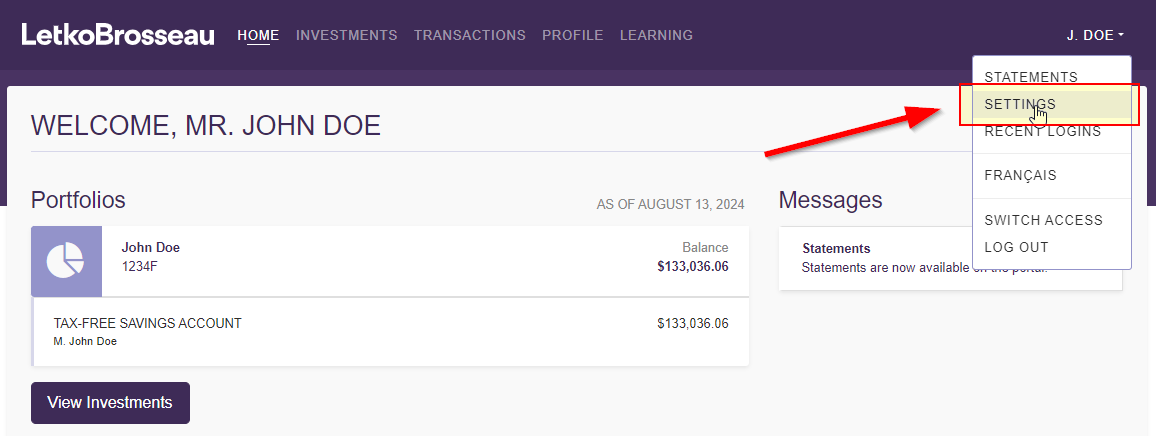
STEP 1: Connect to the client portal, and go to your settings
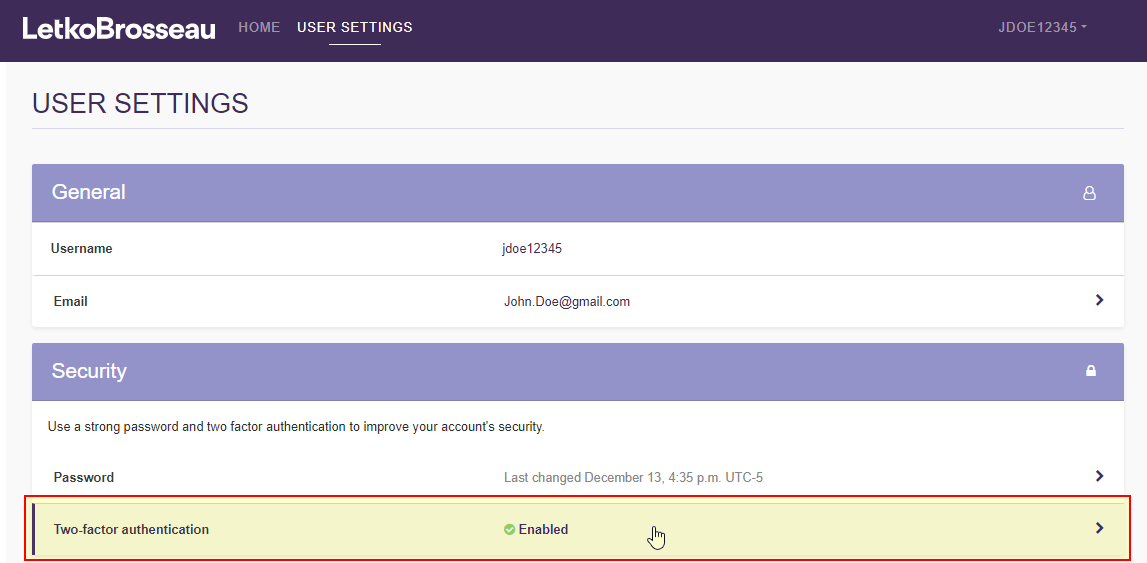
STEP 2: Click on the "Two-factor authentication" section
STEP 3: Select your new preference and save
Choose the method you want to use from now on (text message or phone call) and click "Save".
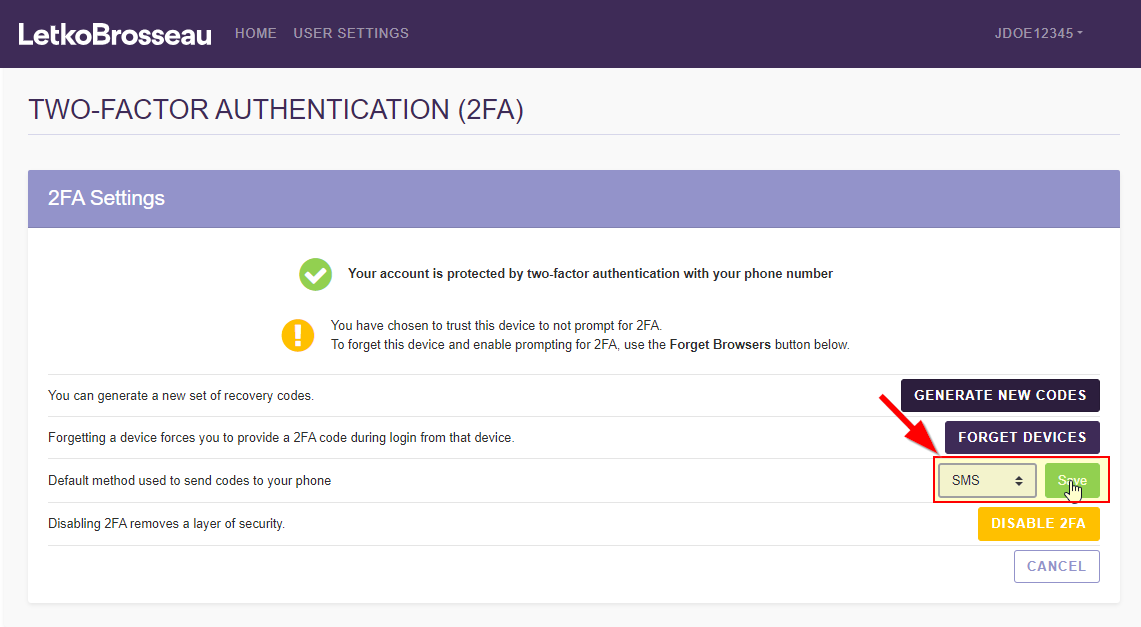
You are done. Your new preference will be used the next time you log onto the client portal.
2. Change from 2FA with authenticator application to the text message (SMS) or phone call method
This is for you if:
- You currently get your 2FA codes from an authenticator application (such as "Google Authenticator" or "Microsoft Authenticator"), but you would prefer to receive your codes by text message (SMS) or by automated phone call.
You will need to first disable your 2FA. Instructions to do so can be found here:
Then, you will reactivate you 2FA using the instructions for your preferred method. A step-by-step explanation for each can be found here:
3. Change from 2FA with text message (SMS) or phone call to the authenticator application method
This is for you if:
- You currently receive your 2FA codes by text message (SMS) or by automated telephone call, but you would prefer to retrieve your 2FA codes from an authenticator application (such as "Google Authenticator" or "Microsoft Authenticator").
You will need to first disable your 2FA. Instructions to do so can be found here:
Then, you will reactivate your 2FA using the step-by-step instructions found here: