Why choose the authenticator application method?
The safest way to get your 2FA codes is through a dedicated application, which will integrate the latest cyber security features and best practices.
Start here
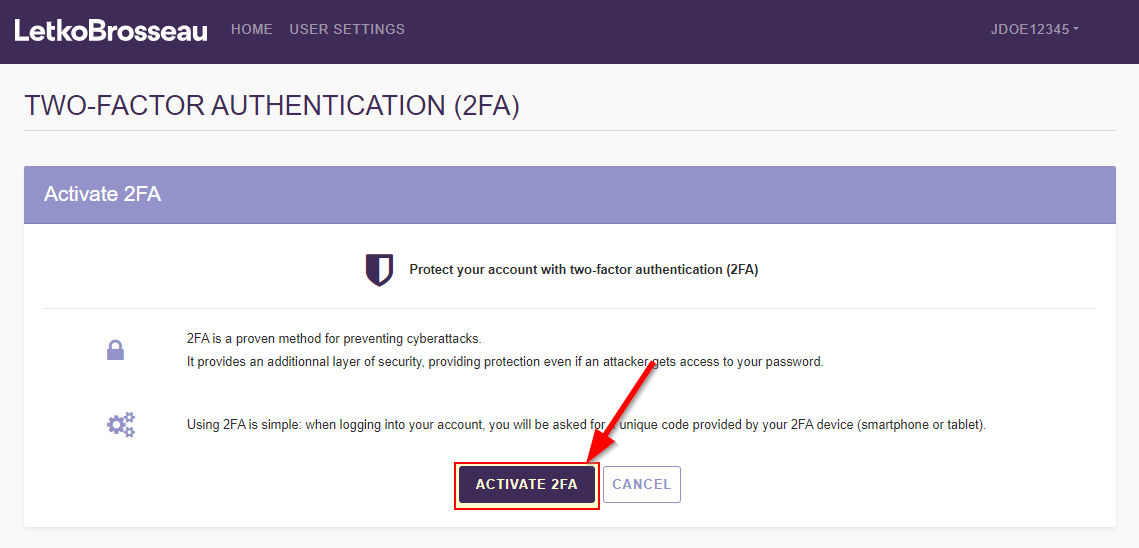
First, login to your client portal account. Once you have logged in, you should see the "Activate 2FA" button. Click this button to start the 2FA activation process.

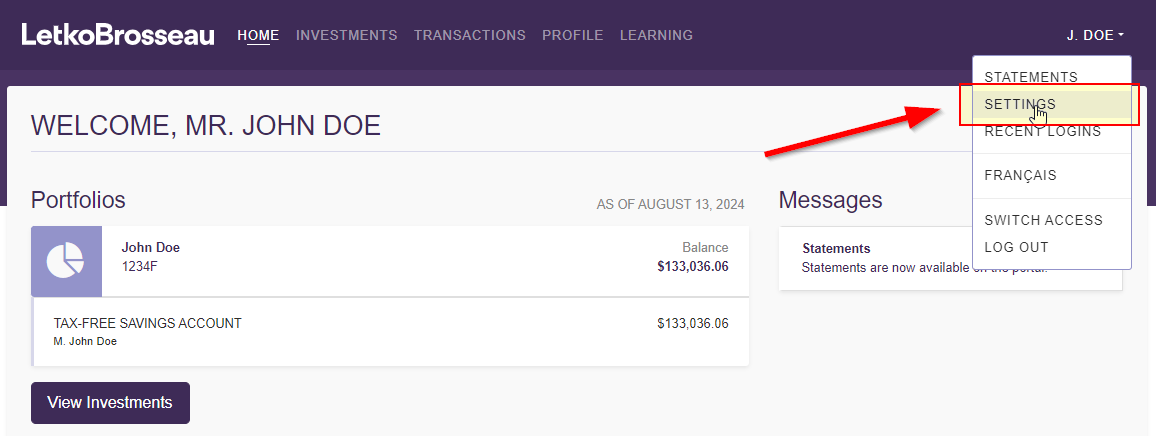
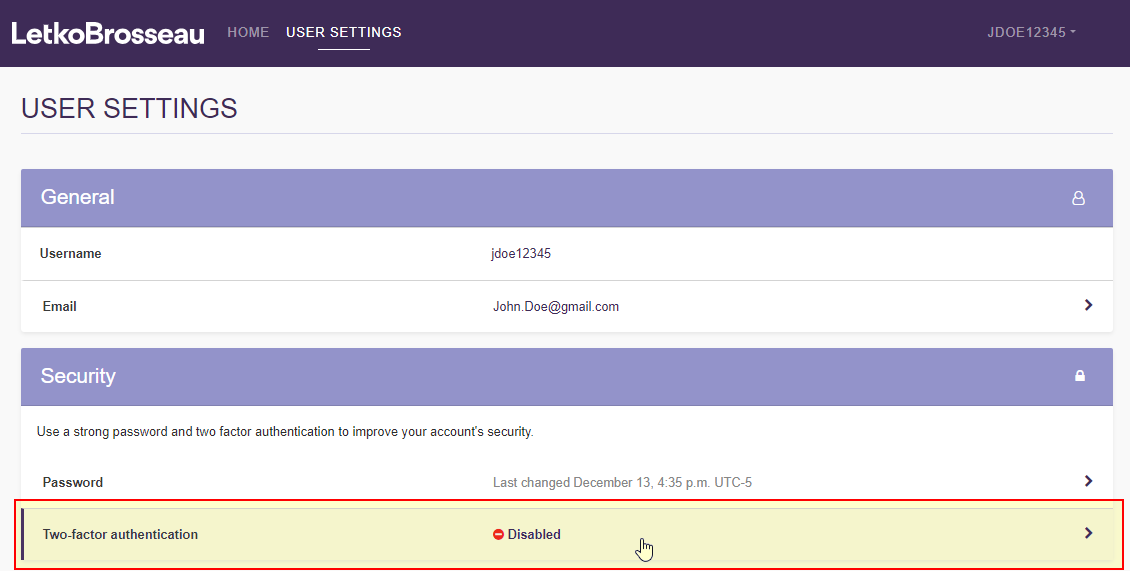
If you do not see the "Activate 2FA" button after logging in, go to your client portal settings. From there, click on the "Two-factor authentication" section. Finally, click on "Activate 2FA".
Configure your authenticator application
STEP 1: Download an authenticator application
Download an authenticator application on your smartphone or other smart device. Many different authenticator applications exist and can be valid choices, however we recommend using "Google Authenticator" or "Microsoft Authenticator", because they are secure and easy to use.
STEP 2: Use the authenticator application to scan the QR code
In the client portal, choose the "Scan a QR code" option and click "Continue"
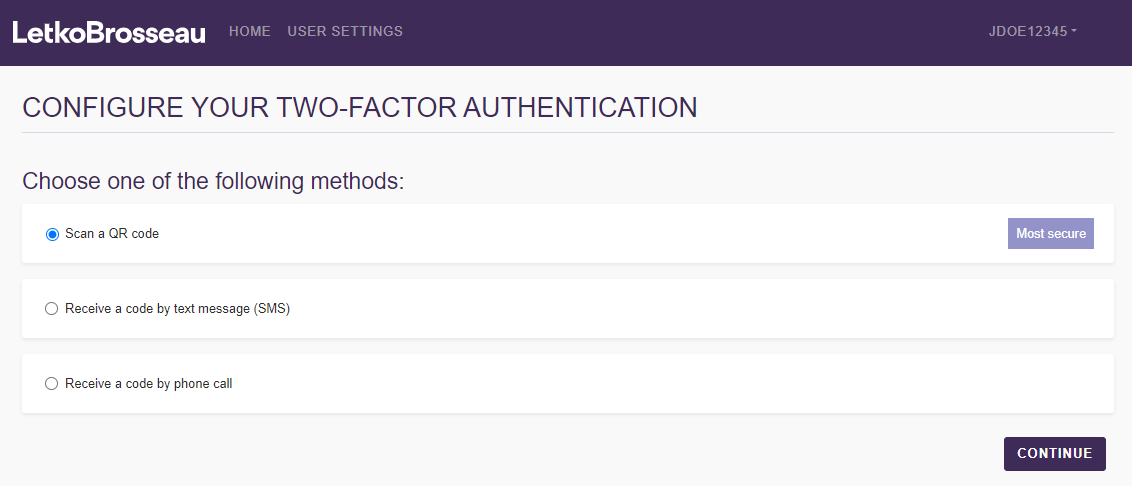
You will now be presented with the page you see below.
Note : Do not scan the QR code directly with your smart device's camera. Instead, make sure to use your Authenticator App to scan the QR code as described below.
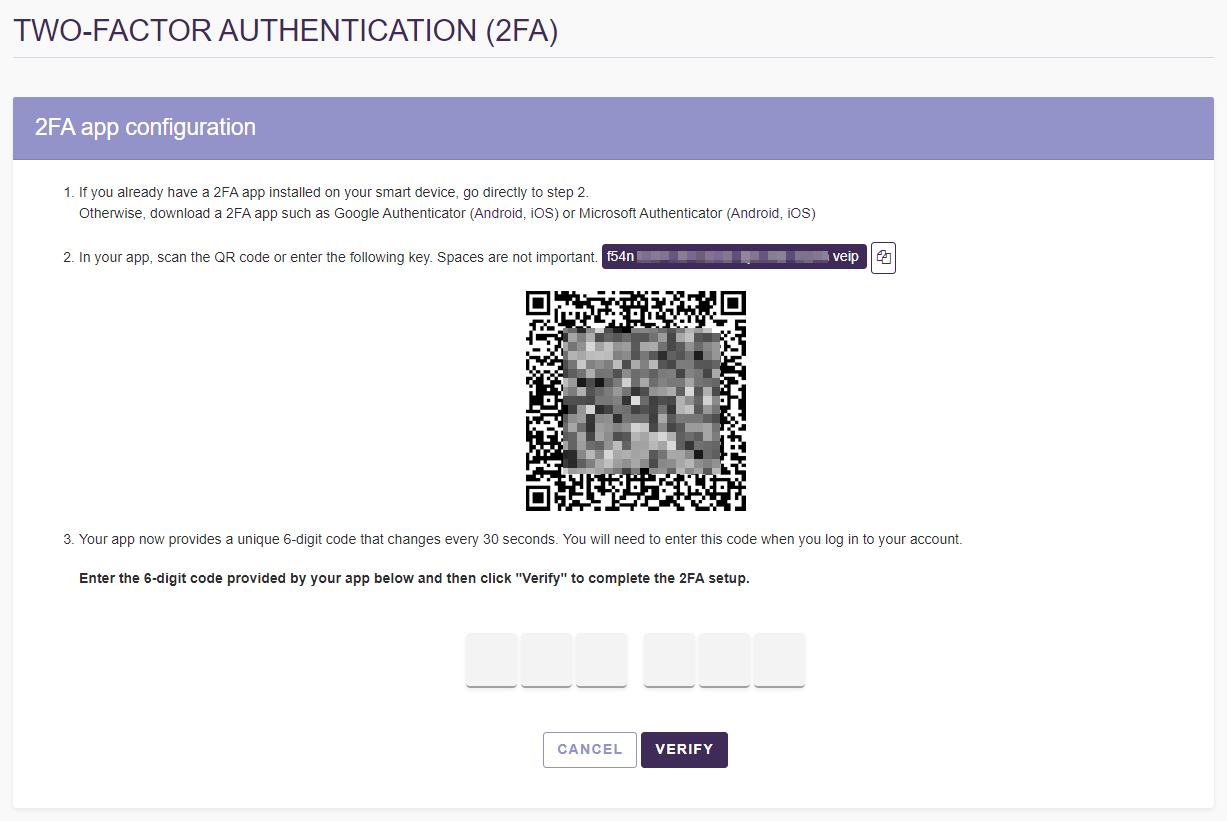
In your authenticator application, add a new 2FA key by scanning the QR code.
Note: Do not scan the QR code using your smart device's camera directly.
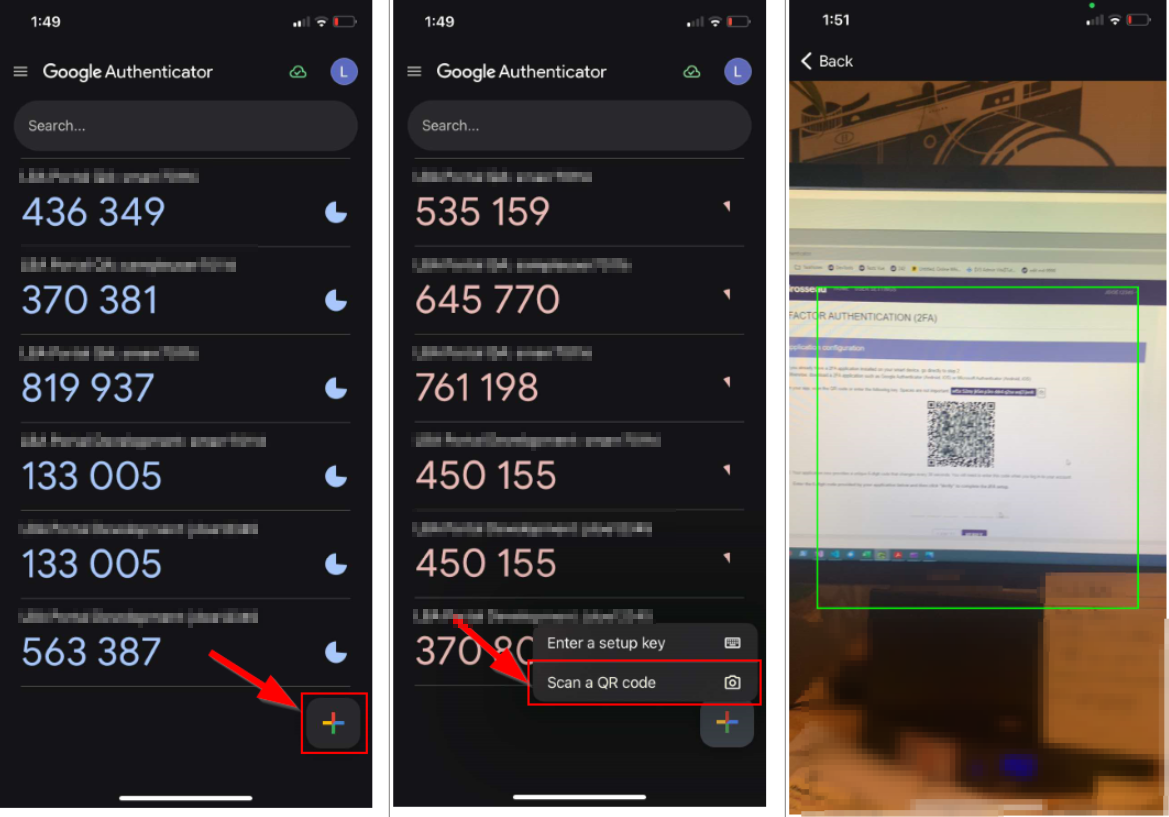
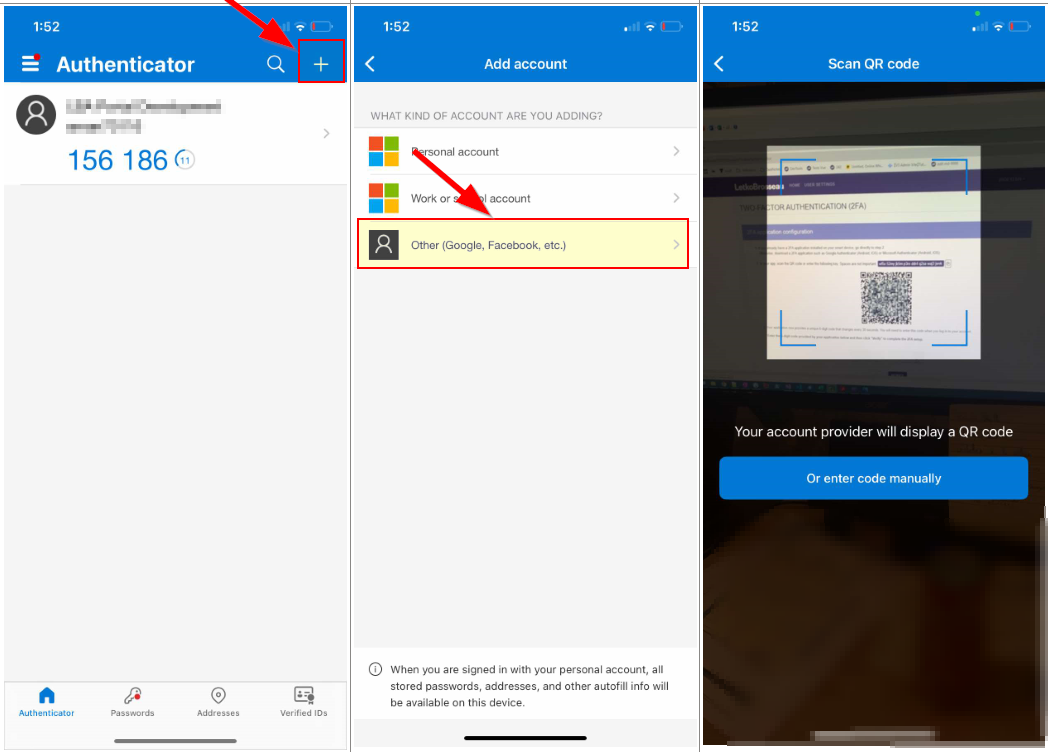
Below, you will find 2 series of screenshots illustrating how to do this with the two authenticator applications we recommend ("Google Authenticator" and "Microsoft Authenticator").
Scanning the QR code in the "Google Authenticator" application
Scanning the QR code in the "Microsoft Authenticator" application
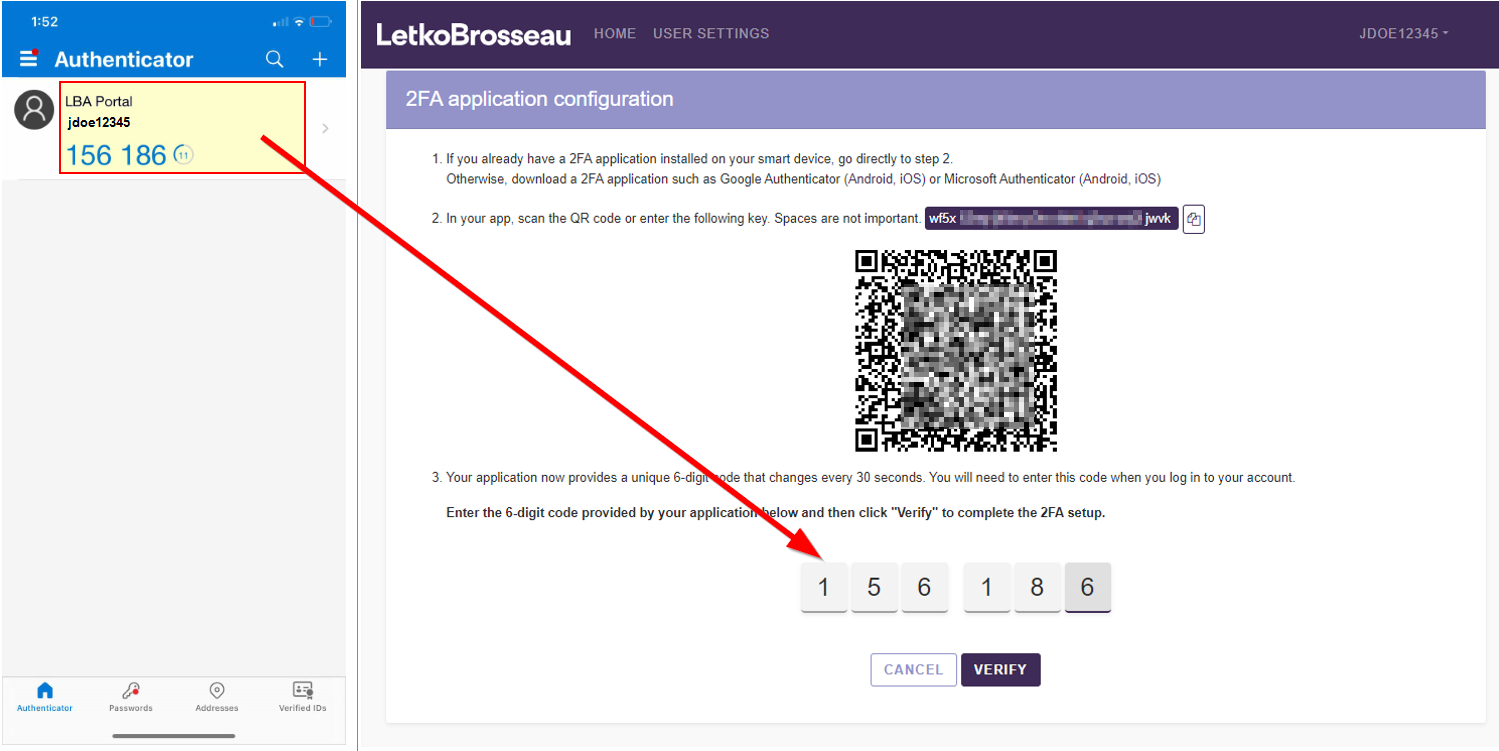
STEP 3: Enter the code provided by the authenticator application
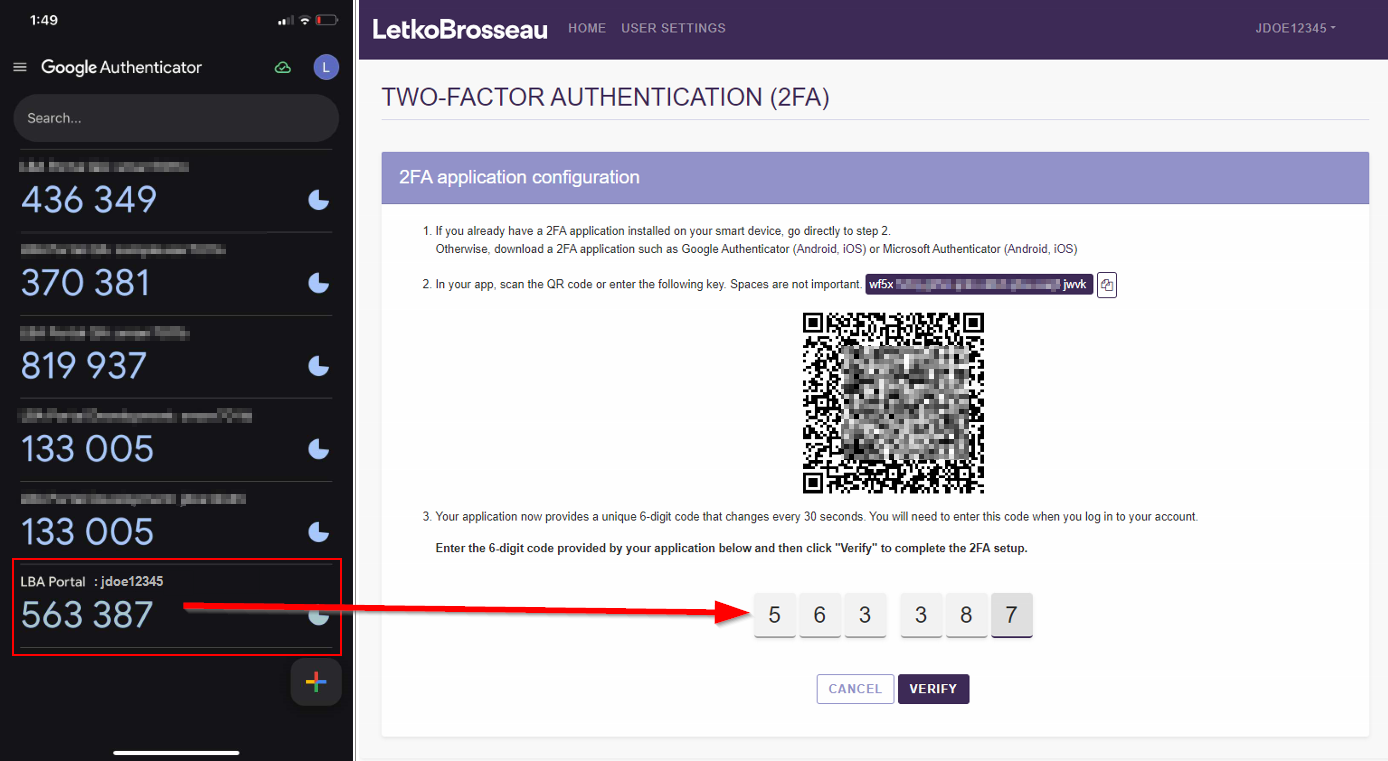
In the client portal, enter the 6-digit code provided by your authenticator application and then click "Verify".
Note: If you have multiple accounts registered in your authenticator application, make sure to use the one labelled "LBA Portal: <username12345>"
You will find below a series of screenshots illustrating where to retrieve the code in each of the two recommended authenticator applications.
Note that certain details of the screenshots may vary, but the essential elements should remain the same.
Retrieving your 2FA code in the "Google Authenticator" application
Retrieving your 2FA code in the "Microsoft Authenticator" application
What to expect next time you log in
The next time you connect to the client portal, you will begin by identifying yourself using your username and password, as usual.
Afterwards, we will ask you to provide your 6-digit 2FA code. At this point, you will need to open your 2FA application to retrieve your code and then enter it on the screen to complete your login.