The safest way to get your 2FA codes is through a dedicated application, which will integrate the latest cyber security features and best practices.
Activate 2FA with authenticator application
Why choose the authenticator application method?
Start here
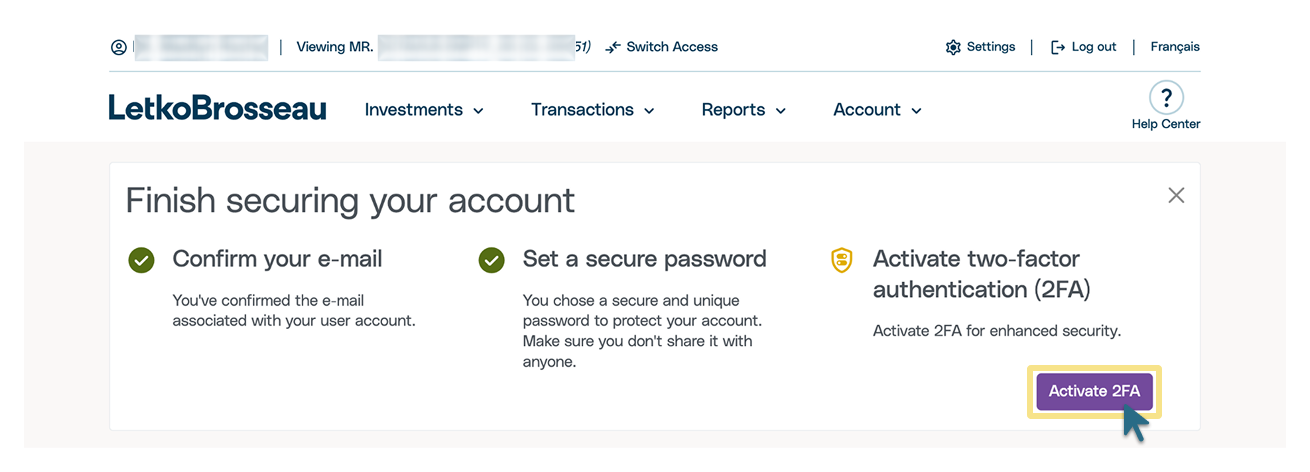
First, login to your client portal account. Once you have logged in, you should see the "Activate 2FA" button. Click this button to start the 2FA activation process.
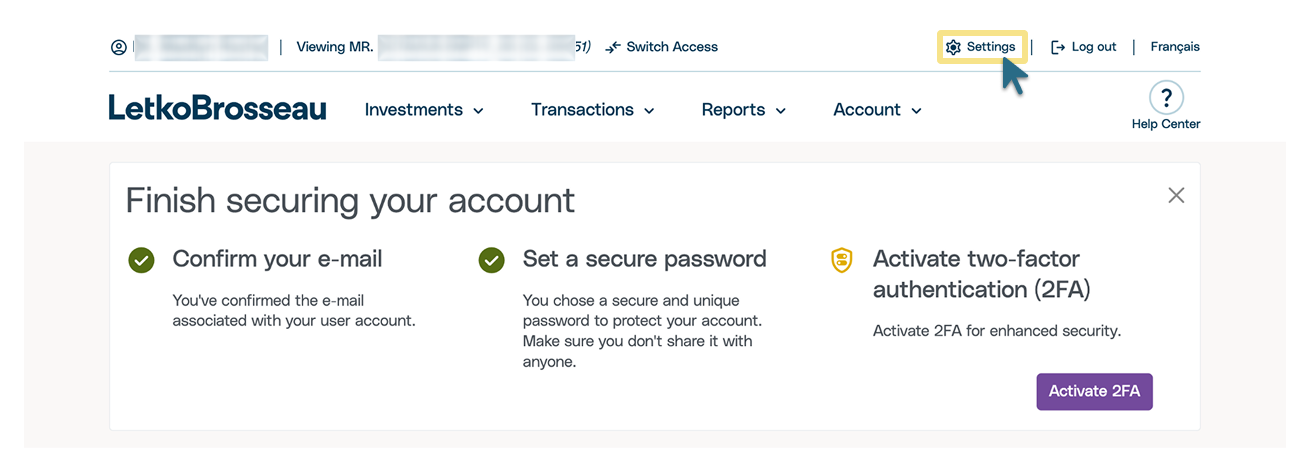
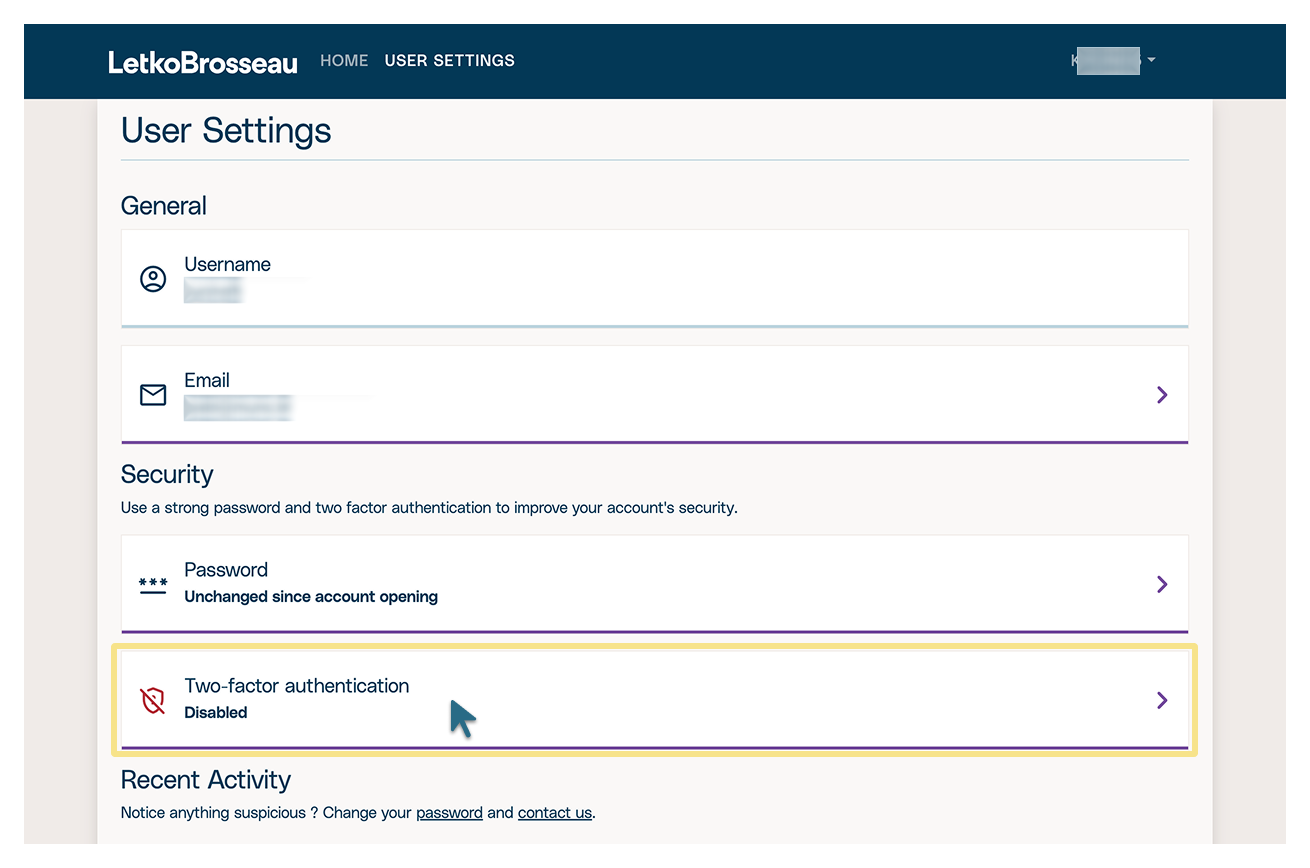
If you do not see the "Activate 2FA" button after logging in, go to your client portal settings. From there, click on the "Two-factor authentication" section. Finally, click on "Activate 2FA".
Configure your authenticator application
Step 1: Download an authenticator application
Download an authenticator application on your smartphone or other smart device. Many different authenticator applications exist and can be valid choices, however we recommend using "Google Authenticator" or "Microsoft Authenticator", because they are secure and easy to use.

Step 2: Use the authenticator application to scan the QR code
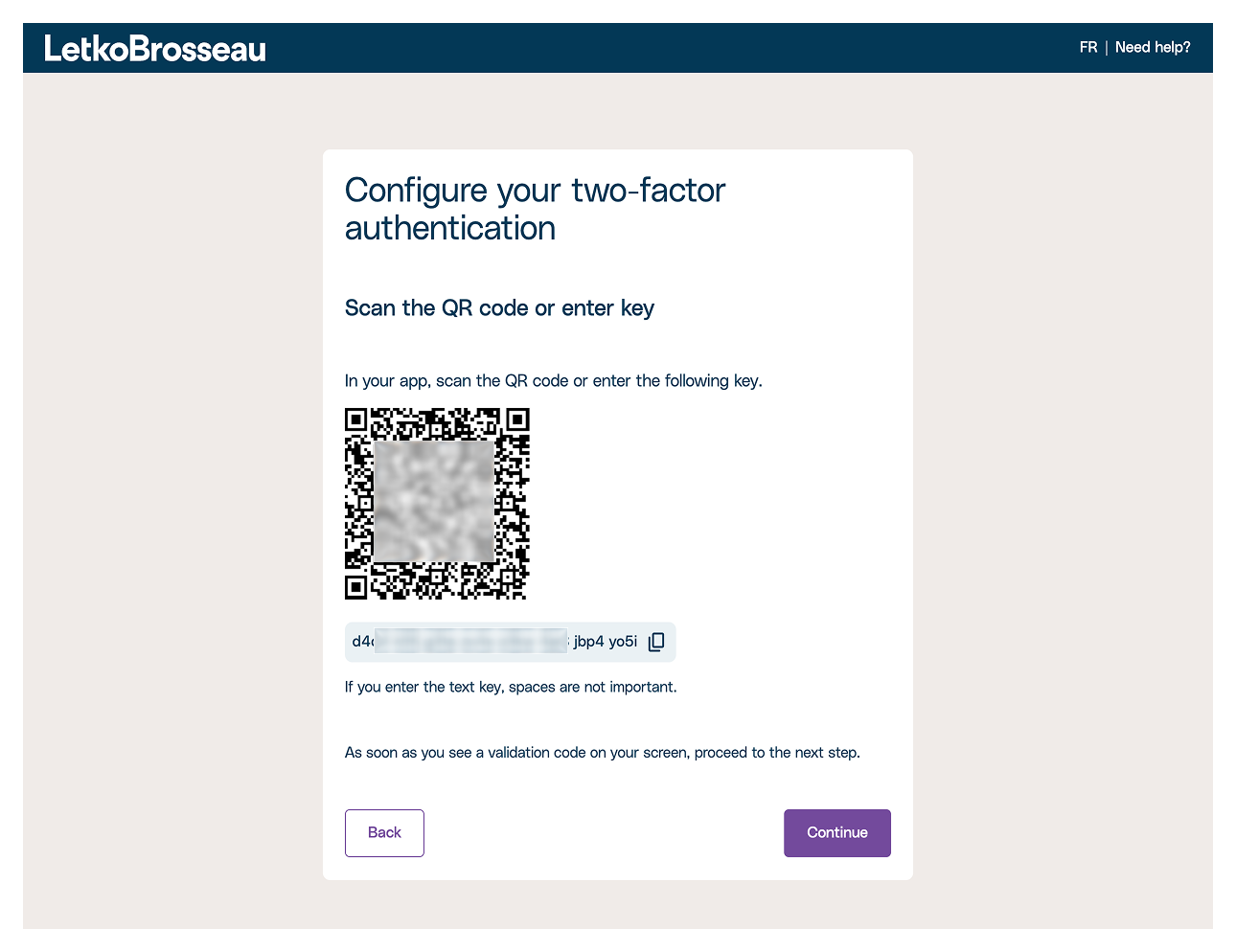
In the client portal, choose the "Scan a QR code" option and click "Continue"
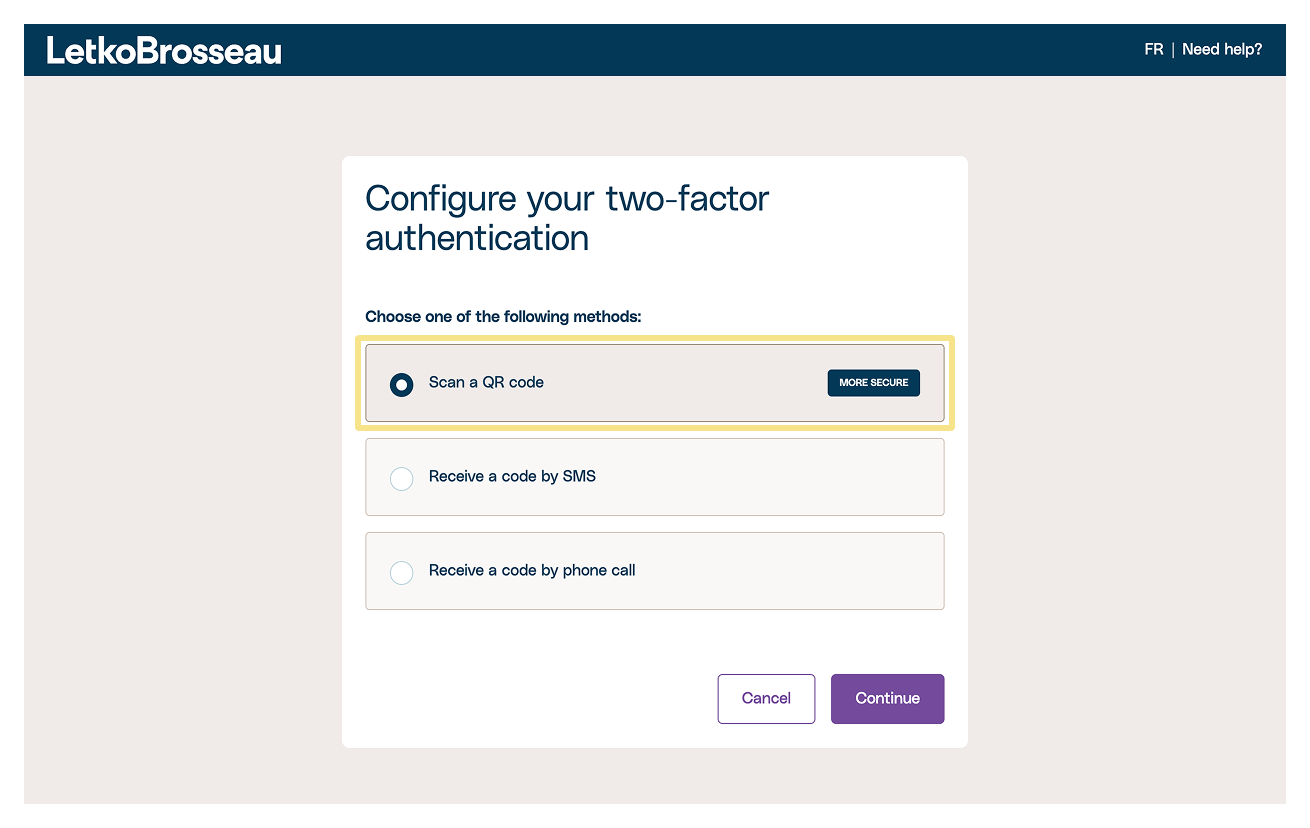
You will now be presented with the page you see below.
Note
Do not scan the QR code directly with your smart device's camera. Instead, make sure to use your Authenticator App to scan the QR code .
You will find screenshots illustrating how to do this with the two authenticator applications we recommend ("Google Authenticator" and "Microsoft Authenticator").
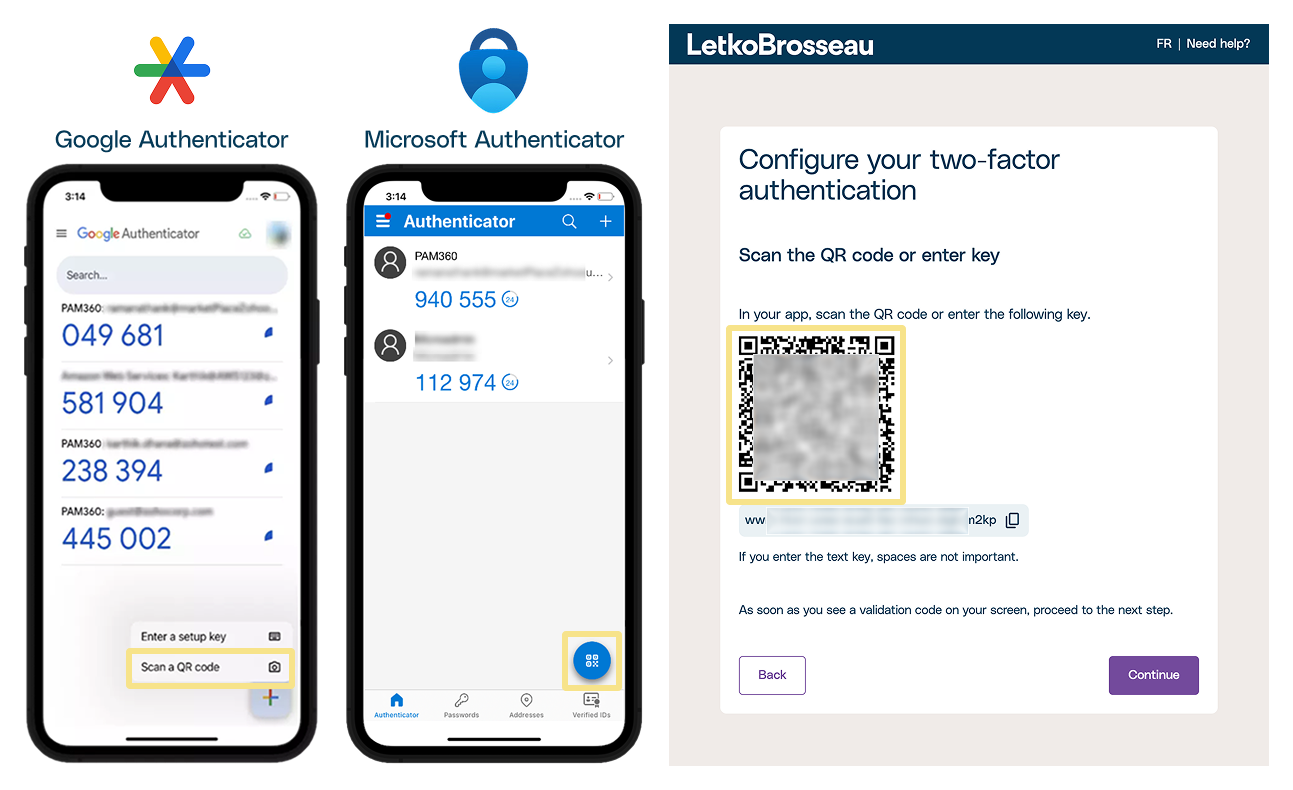
You will find screenshots illustrating how to do this with the two authenticator applications we recommend ("Google Authenticator" and "Microsoft Authenticator").
Note
If you have multiple accounts registered in your authenticator application, make sure to use the one labelled "LBA Portal: username12345"
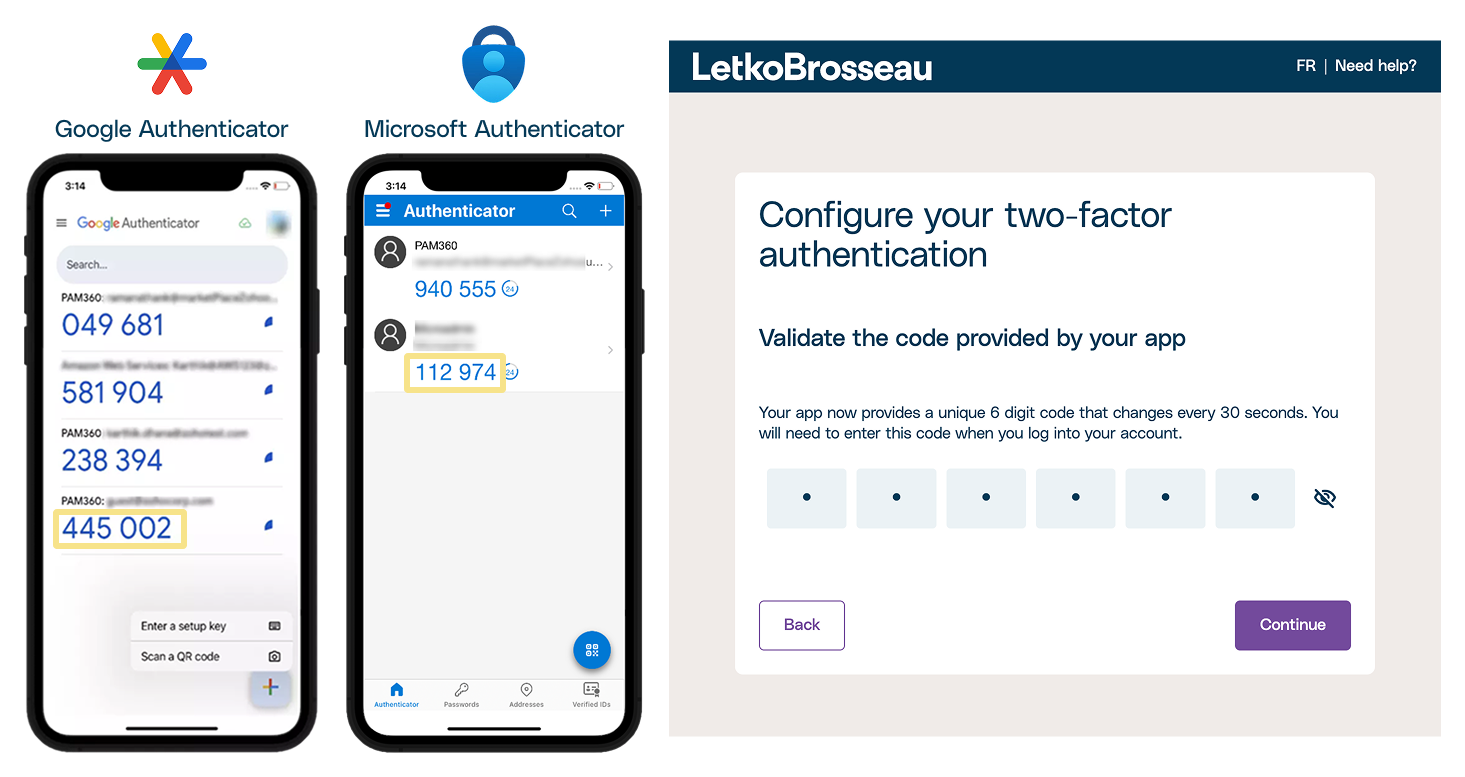
Step 3: Enter the code provided by the authenticator
In the client portal, enter the 6-digit code provided by your authenticator application and then click "Verify".
What to expect next time you log in
The next time you connect to the client portal, you will begin by identifying yourself using your username and password, as usual.
Afterwards, we will ask you to provide your 6-digit 2FA code. At this point, you will need to open your 2FA application to retrieve your code and then enter it on the screen to complete your login.
In this article